Key Takeaways and Insights
We have shortlisted some of the best video storage platforms to store all your videos. The options vary:
For casual video storage: Google Drive (15GB free), MEGA (20GB free), or pCloud (lifetime deal)
For enterprise compliance: Box or Sync.com
For speed and clean UX: Icedrive
For multi-cloud management: Koofr
For course creators and educators: EzyCourse (unlimited storage + video library + LMS features)
The question "where do you store all your videos?" quietly gets searched thousands of times a month. YouTubers drowning in raw footage, online educators with 50+ lecture files, and business owners who just recorded their entire training library have no idea what to do next.
Good for you to know that not all video storage is created equal.
A Google Drive link is very different from a purpose-built video hosting platform and picking the wrong one can definitely hurt you.
For you, we have tried and tested some free and paid video storage platforms and shortlisted the 10 best video storage platforms in 2026.
Where Do You Store All Your Videos?
The easiest way to store all your videos is to use a video storage platform. These platforms usually have free, paid, or both plans to give video storage to creators and businesses.
A reliable and secure video storage solution is a necessity for online content creators, educators, and businesses.
Here are the 10 best video cloud storage platforms where you can store all your videos with ease.
Google Drive
pCloud
IDrive
MEGA
OneDrive
Sync.com
Box
Icedrive
Koofr
What Should You Look For in a Video Storage Solution
It is not always easy to choose the right video storage platform.
If you find a platform that checks all the points, you won't have to worry about losing or mismanaging videos!
Ensure the system is encrypted from end to end and has strong access controls.
Video preview & streaming support
Storage Capacity & Scalability is essential. Can it grow as you need?
Need to share or edit with a team? Check for real-time access.
Fast uploads, downloads, and playback are a must!
Works smoothly with your devices and editing tools? That's a win!
Compare pricing to ensure you're getting the best value.
The 10 Best Video Storage Platforms for Creators & Businesses
1. Google Drive

What is Google Drive and How How Can You Store All Your Videos
Google Drive is a vital organizational tool, which guarantees you will never lose an important file again. You can access, organize, and store these files anywhere and at any time with the AI-powered cloud service.
It offers storage that can scale to 5TB so that it can handle documents, spreadsheets, videos, and PDFs. You and your team will be able to collaborate in real-time by editing documents on Google Docs, Sheets, and Slides.
Need to search for a document quickly? It's easy to search for these documents with AI-powered search.
Using AI-powered classification, Zero Trust architecture, and client-side encryption, Drive protects your sensitive data.
You can also manage file permissions and determine who can view, edit, or comment on your content.
Automatic syncing guarantees you will never have to worry about manually updating your files.
As well as improving workflow with Slack and DocuSign, Google Drive also consolidates and backs up important emails.
Your desktop won't become cluttered, USBs won't get lost, and folders won't get disorganized. Everything is secure and organized in the cloud and is just a click away.
Google Workspace Pricing (Updated):
Business Starter: $6.30 USD (30GB storage, 100 participant meetings, basic AI features)
Business Standard: $12.60 USD (2TB storage, 150 participant meetings, AI in Gmail, Docs, and more)
Business Plus: $22 USD (5TB storage, 500 participant meetings, enhanced security & AI tools)
Enterprise: Contact Sales (5TB+ storage, 1000 participant meetings, advanced security & AI)
[Per User/Month, 1-Year Commitment]
The Good Sides:
Easy access from any device
AI-powered search for quick file retrieval
Seamless collaboration in real-time
Advanced security features for data protection
Offline access to important files
Automatic backup and file syncing
Integration with Google Workspace and third-party apps
Generous free storage (15GB)
The Bad Sides:
Free storage fills up quickly
Large files may take time to upload
Limited offline editing for non-Google file formats
Advanced security features require premium plans
👉Click Here To Try Google Drive
2. pCloud

What is pCloud and How Can You Store All Your Videos
Did you record your new video or document a unique family vacation?
Your hard drive may crash, so what happens? Well, the solution is pCloud, where you don't have to worry about monthly payments and still get good video storage.
The best part about pCloud is that, besides subscription plans, you can opt for lifetime protection as well. No more recharging or storage limits.
You can protect your videos with encrypted protection with pCloud because unwanted individuals cannot access them.
Even more, you can use built-in filling media playback. By that, I mean press play and see your videos from the cloud. Made easy!
File transfers, automatic backups, and media management are synchronized across all devices. Fast sharing with passwords is even possible for business users with custom branding.
pCloud Pricing (Updated)
Monthly/Annual subscriptions:
Premium 500GB: $4.99/month or $49.99/year
Premium Plus 2TB: $9.99/month or $99.99/year
Ultra 10TB: $29.99 or $299.99/year
Lifetime plans (one-time payment):
Premium 500GB Lifetime: $199
Premium Plus 2TB Lifetime: $399
Ultra 10TB Lifetime: $1,190
For Whom Is pCloud the Best Fit?
Personal Users – Families or individuals who want to protect their precious memories.
Content Creators – YouTubers, filmmakers, and photographers need fast, secure storage.
Businesses – Teams looking for hassle-free collaboration and secure file sharing.
The Good Sides:
One-time payment for lifetime access.
End-to-end encryption
Large storage capacity(Up to 10TB of space)!
Supports all devices (Windows, Mac, iOS, Android).
No file size limits, Store ultra-high-res videos.
Fast uploads and downloads
The Bad Sides:
No free plan for lifetime storage.
Encryption is an extra cost.
No video editing tools.
3. IDrive

What is IDrive and How Can You Store Your Videos
After completing an important project or returning from an exquisite family trip, you want to save and share your memories. But your storage solution is inadequate.
IDrive is here where you can store all your videos securely.
With IDrive, you can store and back up video content effortlessly. Instead of just focusing on providing storage space, IDrive has managed to incorporate flexibility and security into its service.
The system's backup and storage functions separately, allowing users to utilize both spaces.
In this way, a new storage structure is created consisting of two parts. One is dedicated to backup files, and the second is used for regular file storage.
You will never have to worry about having enough space for your videos after watching how IDrive works. IDrive's mobile backup ensures all files are securely stored in the cloud along with encryption.
IDrive Pricing Annual (Updated)
Free: 10GB (Basic plan)
Mini 100GB: $0.25/month billed annually (1 user)
Personal 5TB: $6.99/month billed annually (1 user, multiple computers)
Team 5TB: $6.99/month billed annually (5 computers, 5 users)
Business 500GB: $13.99/month billed annually (unlimited users, multiple devices)
For Whom Is IDrive the Best Fit?
Mobile Users – Especially Android users looking for mobile backup and storage.
Businesses & Teams – Need reliable cloud storage and backup with strong security measures.
Graphic Designers & Creatives – Need fast access to large video and design files? IDrive’s the solution.
The Good Sides:
Competitive pricing, especially for 5TB storage.
Get cloud storage and backup without it affecting each other.
Backup your entire phone, not just photos.
Files are safely stored with end-to-end encryption.
Access your videos on Windows, Mac, iOS, and Android devices.
Easily manage your files with a sync folder on desktop.
Quickly upload and restore files, saving you time.
The Bad Sides:
Lacks Advanced Sharing Tools
The setup process can be complicated, especially for backup.
Limited File Management Features
No Lifetime Plans
4. MEGA
What is MEGA and How Does It Work to Store Your Videos
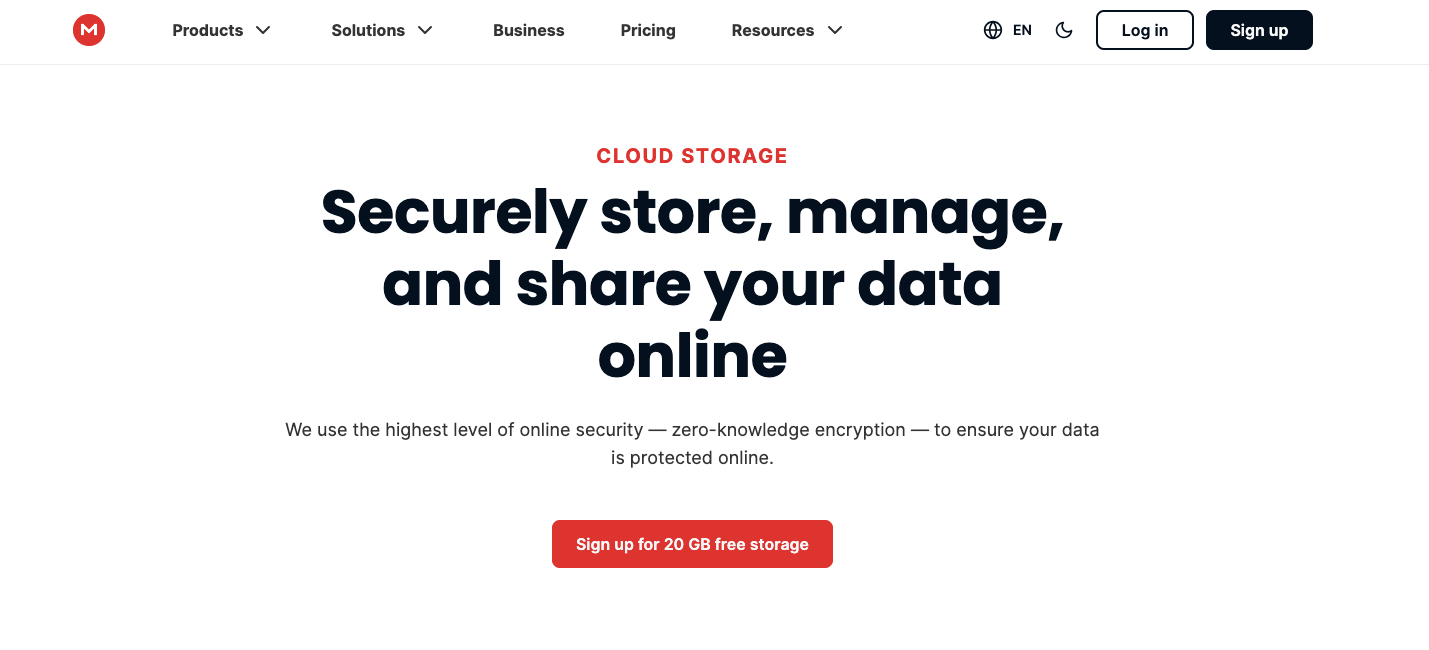
In our opinion, MEGA is the only cloud storage provider that satisfies both capacity and security requirements.
Like others, MEGA also provides files and videos for personal use, including videos up to 100TB and 10PB for businesses.
With Mega, you can share files securely with password protection while storing a lot of data. You can trust Mega for their advanced end-to-end encryption to keep your data private.
By completing simple tasks, MEGA users can extend their free 20GB storage plan to 30 GB. On the other hand, their paid plans start with 2TB and increase to 16 TB.
It is convenient for power users, filmmakers, businesses, and anyone who needs more video storage.
MEGA Pricing (Updated)
Free: 20 GB (expandable temporarily to more via referrals/tasks)
Essential: 200GB storage — $3.85/month (billed annually)
Pro Lite: 750GB storage — $5.77/month (billed annually)
Pro I: 3TB storage — $9.62/month (billed annually)
Pro II: 10TB storage $19.24/month (billed annually)
Pro III: 20TB storage $28.86/month (billed annually)
For Whom Does MEGA Fit the Best?
Security-Conscious Users – Those who prioritize end-to-end encryption to keep their files safe
Businesses – Companies that need a high-capacity and secure storage solution.
Power Users – Anyone who needs large storage, including personal or business use.
Video Creators – Filmmakers, YouTubers, or anyone dealing with large video files.
The Good Sides:
Start with 20GB of free storage and easily expand it to 30GB through simple tasks.
Large Storage Options
MEGA works across Windows, Mac, Android, and iOS
Fast transfer speeds for your large files, perfect for heavy video uploaders.
Easy-to-navigate interface via the browser extension or mobile apps.
Expandable Storage
Affordable for High-Capacity Plans
The Bad Sides:
Expensive Paid Plans
Limited Features Beyond Storage
Potential Issues with Zero-Knowledge
No Built-in Video Editing Tools
5. Microsoft OneDrive

What is Microsoft OneDrive and How Can You Store All Your Videos
If you want one cloud storage that matches Microsoft products, OneDrive is best for web-based video storage.
For customers using Microsoft Products, OneDrive is a smart option for storing photos, documents, and videos. This feature eliminates the hassle of having to copy files manually.
You can access your files and folders at any time at the back of your PC.
OneDrive, however, has some drawbacks too.
Personal storage is limited to 1TB and the level of security provided is not comparable to other cloud services. On the other hand, if you want straightforward sharing and access on multiple devices, OneDrive does this brilliantly.
OneDrive Pricing (Updated)
Microsoft 365 Free: 5 GB
Microsoft 365 Basic 100GB: $1.99/month
Microsoft 365 Personal 1TB: $9.99/month
Microsoft 365 Family Upto 6TB: $12.99/user/month
Microsoft 365 Business Basic 1TB+: $6.00/user/month
Microsoft 365 Business Standard 1TB+: $12.50/user/month
For Whom is OneDrive the Best Fit?
Windows Users – Preinstalled on all Windows devices.
Casual Users – Simple cloud storage for personal use.
Business Teams – Collaboration with SharePoint and Teams.
Microsoft Office Users – Seamless integration with Office apps.
The Good Sides:
Preinstalled on Windows, No setup needed.
Directly integrates with Office apps.
Available on Windows, Mac, iOS, and Android.
Save space by storing files in the cloud.
Auto-backups files to the cloud.
Sync changes across devices.
Easy sharing with others.
SharePoint and Teams for enterprise use.
1TB and 6TB storage with Office apps.
The Bad Sides:
Limited Free Storage
No higher personal storage option.
No Zero-Knowledge Encryption
Limited compared to other services.
👉 Click Here To Try Microsoft OneDrive
6. Sync.com

What is Sync.com and How Does It Work to Store Your Videos
Sync.com is a secure cloud storage file solution with powerful features. It provides zero-knowledge encryption that ensures your data is accessible only to you.
No one can access your data - not even Sync.com.
If you care about privacy, Sync.com is an excellent option because it is hosted on Canadian servers, which operate under PIPEDA privacy laws. As a result, the service provider can store data centrally but restrict access.
Also, it is user-friendly for both personal and business usage. Sync.com allows its users to manage files quickly and securely.
Users can also set passwords, expiry dates, and how many times they can download shared files with Sync.com. Small businesses and legal firms can also collaborate securely through the encryption of files.
However, it allows file sharing and encryption on multiple devices.
With Sync.com, your files are always secure. The platform can be accessed from mobile and desktop devices, so you can access your files wherever you are.
Pricing (Updated)
Free: 5 GB
Personal 150GB: Free Trial
Personal 1TB: $8/month
Pro Solo 5TB: $16/month
Pro Unlimited (Unlimited storage): $54/month
Pro Teams Standard 1TB: $4/user/month
Pro Teams+ Unlimited (Unlimited storage): $9/user/month
Enterprise (Minimum 100 users req.): Custom
For Whom is Sync.com the Best Fit?
Security-Minded Users – Best for those who prioritize privacy and encryption.
Small Businesses – Perfect for teams needing secure file sharing and collaboration.
Legal Professionals – Best cloud storage for lawyers and confidential document storage.
Power Users – Ideal for unlimited storage needs, especially for small teams or businesses.
The Good Sides:
Ensures no one can access your data except you.
Affordable Plans, Starting at $8/month for 1TB.
Privacy protection under PIPEDA laws.
Set passwords, expiry dates, and download limits.
Edit and collaborate on files easily.
Provides secure collaboration with encrypted files.
Easy-to-use interface for desktop and mobile.
Provides hardened physical servers and advanced encryption.
The Bad Sides:
Syncing can be slower than some competitors.
Web uploads are not fully zero-knowledge.
Currently not available for Linux users.
7. Box

What is Box and How Can You Store All Your Videos
The Box cloud storage platform is designed for business and enterprise collaboration needs. Business file storage with strong security, automation, and compliance assistance is Box's best feature.
Several third-party applications, such as Slack, Google Workspace, and Microsoft 365, make the platform useful for corporations.
Also, Box is highly suitable for businesses and enterprises due to its excellent security and collaboration features.
As a result of its integration with other popular tools, Box is highly regarded in business settings.
Pricing (Updated):
Free: 10 GB
Personal Pro: $14/month (100 GB)
Business Starter: $7/user/month (100 GB)
Enterprise: Custom pricing
Business: $20/user/month (unlimited storage)
Business Plus: $33/user/month (unlimited + advanced security)
Enterprise: $47/user/month (compliance features: HIPAA, FedRAMP)
For Whom is Box the Best Fit?
Businesses and Enterprises – Best for organizations needing secure storage.
Collaborative Teams – Ideal for teams working with large volumes of files.
Compliance-Sensitive Industries – Suitable for industries requiring regulatory compliance.
The Good Sides:
Includes file-level encryption and two-factor authentication.
Easily collaborate and share files with teams.
Keep track of file changes with version history.
Available for Windows, macOS, Android, and iOS.
Automate workflows and file management processes.
Set granular permissions for better control over file access.
Supports HIPAA, ISO 27001, and more.
Upload and manage large files effortlessly.
The Bad Sides:
Expensive for Personal Use
Limited Free Plan
Interface Can Be Overwhelming
👉 Click Here To Try Box
8. Icedrive
What is Icedrive and How Can You Store All Your Videos
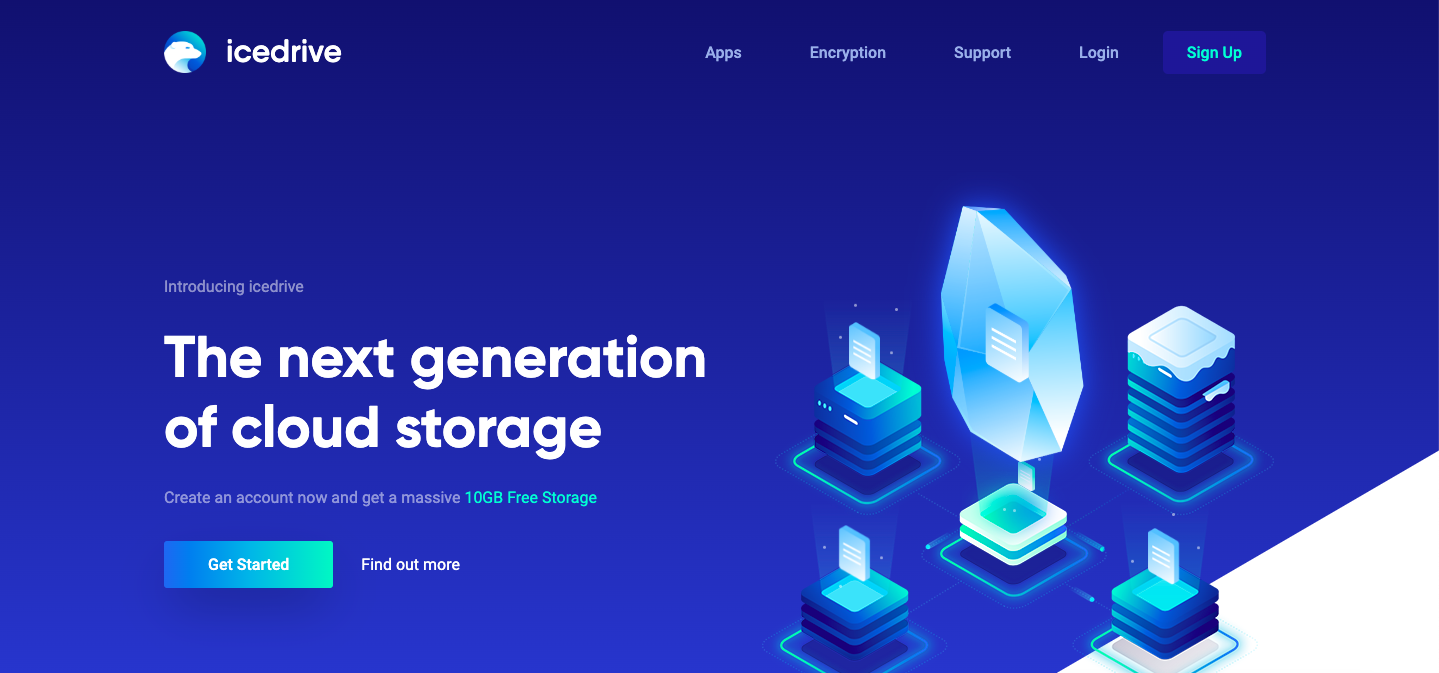
When it comes to uploading files at breathtaking speed, Icedrive takes the cake with advanced encryption thanks to its extreme speed.
Clients can enjoy its modern user interface for client-sided encryption, which is ideal for speed enthusiasts who value privacy as well.
Even IceDrive is one of the strongest contestants in the cloud storage market.
If you want speedy, private storage, these are hard to beat with their user-friendly interface and eye-watering upload speeds.
Pricing (Updated):
Free: 10 GB (limited bandwidth)
Pro 2TB: $5.99/month
Pro 4TB: $9.59/month
Pro Max 6TB: $16.19/month
For Whom is Icedrive the Best Fit?
Individuals With Large Files – Great for those who need to upload and store large files quickly.
Budget-Conscious Users – Offers affordable pricing plans.
Privacy-Focused Users – Ideal for those who need secure storage with client-side encryption.
The Good Sides:
Blazing-Fast Upload Speeds
Provides end-to-end encryption for complete file privacy.
Clean, modern design makes it easy to navigate for both beginners and advanced users.
Offers sync via a traditional folder, virtual drive, or portable app.
Available on Windows, Mac, Linux, and mobile platforms like iOS and Android.
Affordable Pricing – Offers one of the most competitive pricing models in the industry.
Unique option for users looking for long-term storage at a one-time cost.
Use the sync feature with no installation needed, especially handy for on-the-go users.
The Bad Sides:
No Zero-Knowledge on Free Plan
Limited Collaboration Features
Zero-Knowledge Encryption Limited to One Folder
Bandwidth Caps for Free and Paid Plans
9. EzyCourse

What is EzyCourse and How Can You Store All Your Videos
EzyCourse isn't a standalone video storage platform; it's a solution for content creators and educators to store, organize, share, and manage video and audio content.
Its unlimited video hosting doesn't require third-party storage. You can upload files directly to EzyCourse and sit back while the platform handles the rest.
Security comes first, and with EzyCourse, your exclusive content stays safe with password-protected libraries. You decide who can access your training materials.
Users can interact with smart video suggestions similarly to YouTube by receiving relevant content based on their activities.
Finding videos with specific keywords or filtering tools is easier. Users do not have to scroll through a lot of content to reach what they need.
Besides, the platform makes the process easier by allowing different kinds of learning.
Pricing (Updated):
Essential: $55/month (billed annually): Unlimited storage, full video and content hosting
Pro: $129/month (billed annually): Unlimited storage, unlimited video libraries, gamification
Unlimited: $189/month (billed annually): All Pro features + free branded mobile app, advanced analytics, marketing features
Elite: $279/month (billed annually): Every feature + VIP support, direct CEO access, all current and future add-ons
For Whom EzyCourse is the Best Fit?
Educators & Online Course Creators – Build structured learning experiences with video libraries.
Coaches & Consultants – Deliver premium coaching content with secure access.
Podcasters & Musicians – Store, organize, and distribute audio content effortlessly.
Business Teams – Streamline corporate training and internal knowledge sharing.
Good Sides:
Easily organize and manage videos without technical skills.
No need for additional storage or third-party hosting costs.
Password-protected libraries keep content safe.
Increases engagement by suggesting related videos.
Lets users access content from anywhere.
Expand your audience with quick sharing options.
Great for webinars and real-time engagement.
Bad Sides:
Limited customization in lower-tier plans
A little expensive for beginners
10. Koofr

What is Koofr and How Can You Store All Your Videos
You can access various accounts from a single interface because Koofr does not directly access files stored in the cloud server. If you have a Google Drive, Dropbox, or OneDrive account, Koofr lets you download files seamlessly from those accounts like a file manager.
It even allows remote access and integration with Microsoft Office; therefore, Koofr is useful when consolidating cloud storage services.
Because of its multi-cloud integration, Koofr is a good option for people with multiple cloud accounts.
Plus, it's expensive at the higher tier and doesn't compare favorably to cloud storage providers that offer more space for less money.
You can access various accounts from a single interface because Koofr does not directly access files stored in the cloud server.
If you have a Google Drive, Dropbox, or OneDrive account, Koofr lets you download files seamlessly from those accounts like a file manager.
It even allows remote access and integration with Microsoft Office; therefore, Koofr is useful when consolidating cloud storage services.
Pricing (Updated):
Briefcase S (10GB) – $0.50/month
Briefcase M (25GB) – $1/month
Briefcase L (100GB) – $2/month
Suitcase XL (250GB) – $4/month
Suitcase XL+ (500GB) – $7/month
Suitcase XXL (1TB) – $10/month
Crate XXXL (2.5TB) – $20/month
Crate 5XXL (5TB) – $35/month
For Whom is Koofr is the Best Fit?
Business Users – Those who need real-time collaboration through Microsoft Office integration.
Privacy-Conscious Users – Ideal for those looking for a secure, zero-knowledge service.
Multi-Cloud Users – Perfect for those managing several cloud services simultaneously.
Good Sides:
Multi-Cloud Management
No need to sync everything; you can remotely access your files directly through the Koofr mobile app.
Microsoft Office Integration
Basic features such as resizing, cropping, and applying filters to images.
File Sync Customization
Built-in tool to avoid file duplication across your storage.
Available on all major operating systems and mobile devices, making it highly accessible.
Bad Sides:
Expensive Higher-Capacity Plans
Clunky Zero-Knowledge Vault
Complex Customization
What is a Cloud Storage Provider?
Cloud storage providers allow users to store, organize, and retrieve data digitally. There is no physical storage required, resulting in enhanced security and cost-effectiveness.
Suppose you have an extensive catalog of photos, videos, and vital documents. Keeping them in your computer’s internal storage or an external hard drive can be dangerous.
Even hardware tends to fail, devices are often misplaced, and space is often limited.
What if your data could be kept in an ultra-secure vault accessible from anywhere?
Well, cloud storage providers do just
Instead of having files on your local device, cloud storage providers have remote servers.
Data storage companies such as Google Drive, Dropbox, One Drive, and Amazon S3 handle these servers. It's easy to upload data, access it anytime, and share it.
What Does Cloud Storage Do?
With cloud storage, you can store, access, and share files online without fear of data loss. Some of the reasons why everyone should do it.
Why spend money on expensive hard drives or IT maintenance? Pay per usage instead.
No new hardware? No problem, instantly upgrade to more space.
Top Notch Security – Encryption, firewalls, and other means of data protection maintain file integrity.
Work on any device, no matter where you are in the world.
Never lose another important file if your computer malfunctions.
Share files through a link instead of email attachments that are too large.
Consumes less power than typical storage methods.
What is a Video Cloud Storage Provider?
Usually, a video cloud storage provider is a specific type of cloud storage that makes it possible to save, control, and stream videos.
Unlike typical cloud storage, it focuses on storing videos, which require high capacity, reliable sharing, and effortless playback.
However, Video Cloud Storage includes:
Large Storage Capacity - Handles terabytes of video without any bugs.
Easy Sharing: Videos can be shared securely using various levels of access.
Optimized Streaming: Users can view content instantly from anywhere without needing to download it.
Advanced Security - Ensures encryption, password protection, and compliance with different industry regulations.
Automatic Backup: Proprietary critical video files cannot be lost.
Businesses and content creators need to have a reliable video cloud storage provider because videos are secure and easy to manage.
Why Does Video Storage Require Special Attention?
Actually, video storage needs special attention due to its large file sizes, streaming demands, and security requirements. Unlike images or documents, videos need flexible storage to playback and share easily.
In true words, there is a limited amount of storage space.
In contrast to images or documents, videos also provide fast streaming and secure sharing.
Cloud storage providers offer specialized video storage solutions to provide controlled access and seamless playback.
For example, companies utilize cloud videotape storage for:
Training – Employees can access training videos remotely.
Hiring and training – Organizations provide training videos for new employees.
Marketing and selling – Companies store videos for easy access and share them.
Education – Schools and colleges put lectures and courses on cloud servers.
So, Where Do You Store All Your Videos Actually!
There's no single "best" platform for storing your videos, and that's actually a good thing. It means the market has matured enough that most use cases are well-covered.
The main thing worth understanding before you pick a platform is what you actually need the storage to do. Storing a file and streaming a file to someone else are two very different things and they often require different tools. Creators run into trouble precisely here: they pick a storage solution when what they really needed was a delivery solution.
It also helps to think ahead. Video libraries grow faster than most people expect. A 10-hour course today is a 50-hour library in two years. Storage that feels generous now can quietly become a headache later, so it's worth checking upgrade paths before you get locked in.
Finally, keep an eye on platform stability. The cloud storage space has seen a fair share of acquisitions, price hikes, and feature rollbacks in recent years. Checking a platform's ownership history and community forums before committing long-term is a small step that can save a big migration headache down the road.
FAQs
Q: Best way to store videos long term for free?
The most reliable free options for long-term video storage are Google Drive (15 GB), MEGA (20 GB, expandable to 30 GB), and pCloud (10 GB free forever). Of these, MEGA gives you the most free space with solid encryption baked in by default.
Q: How much storage do I need for video content?
A standard HD video runs about 1–2 GB per hour; 4K footage can hit 7–10 GB per hour. A 20-hour online course typically requires 30–60 GB including lesson videos, resources, and captions. Plan for at least 100 GB if you're building a multi-course library.
Q: Where can I store my videos for free?
Google Drive gives every account 15 GB shared across Drive, Gmail, and Photos. MEGA offers 20 GB with end-to-end encryption right out of the box. pCloud gives 10 GB permanently, no expiry. OneDrive comes with 5 GB if you have a Microsoft account, and Icedrive throws in a free 10 GB tier with a clean interface.
Q: Where can I store videos from my phone for free?
Google Photos is the easiest answer here since it's already built into most Android phones and backs up automatically in the background. It pulls from your camera roll without you having to do anything manually. iCloud does the same for iPhone users with 5 GB free. If you want something cross-platform or a bit more privacy-focused, MEGA and pCloud both have solid mobile apps that auto-backup your camera roll with decent free storage tiers.
Q: How do YouTubers store their videos?
YouTubers use multiple approaches rather than relying on one option. The general rule in the creator community is the 3-2-1 backup method — three copies, on two different storage types, with one stored off-site. Raw footage for fast external hard drives or NAS (Network Attached Storage) setups at home for quick editing access. Many creators keep a compressed master copy in cloud storage like Google Drive and Dropbox. Larger creators often add a dedicated backup service like Backblaze, which offers near-unlimited cloud backup for a flat monthly fee.
Q: How to store videos on cloud?
The process is the same across most platforms — create an account, download the desktop or mobile app, and either drag files into a sync folder or let the app auto-upload from your camera roll. Google Drive, OneDrive, and Dropbox all use a sync folder on your computer that mirrors to the cloud automatically once you drop files in. For course creators or educators with larger video libraries, platforms like EzyCourse handle uploads directly and store them as part of your course or video library.
Q: What's the difference between cloud storage and video hosting?
Cloud storage (Google Drive, pCloud, Dropbox) is a digital locker that saves and syncs files. Video hosting (Vimeo, Wistia, EzyCourse) is a streaming delivery system. It optimizes playback, protects content, and gives you viewer analytics. Course creators need video hosting alongside cloud storage.


